🎬 Radiance Viewer
VFX Industry-Standard Image Viewer for ComfyUI
📖 Overview
The Radiance Pro Viewer brings professional image analysis tools from industry applications like Autodesk Flame, Foundry Nuke, and DaVinci Resolve directly into ComfyUI.
🔍 Interactive Navigation
Smooth zoom and pan with mouse wheel and drag gestures.
📊 Professional Scopes
Real-time Histogram, Waveform, and Vectorscope analysis.
🎨 Exposure Controls
Adjust display EV and gamma for evaluating HDR content.
🚨 False Color & Zebra
ARRI-style exposure visualization and clipping detection.
↔️ A/B Comparison
Wipe and difference modes for comparing versions.
📺 Fullscreen Mode
Expand viewer to full screen for detailed inspection.
🚀 Getting Started
Adding the Node
Search for Radiance Viewer in the ComfyUI node menu,
or navigate to FXTD STUDIO → Radiance → Viewer.
First Steps
| Scroll | Zoom in/out towards cursor |
| Shift + Drag | Pan around the image |
| Press F | Fit image to view |
| Press 1 | 100% zoom (1:1 pixels) |
| Click | Sample color values |
🖥️ Interface Layout
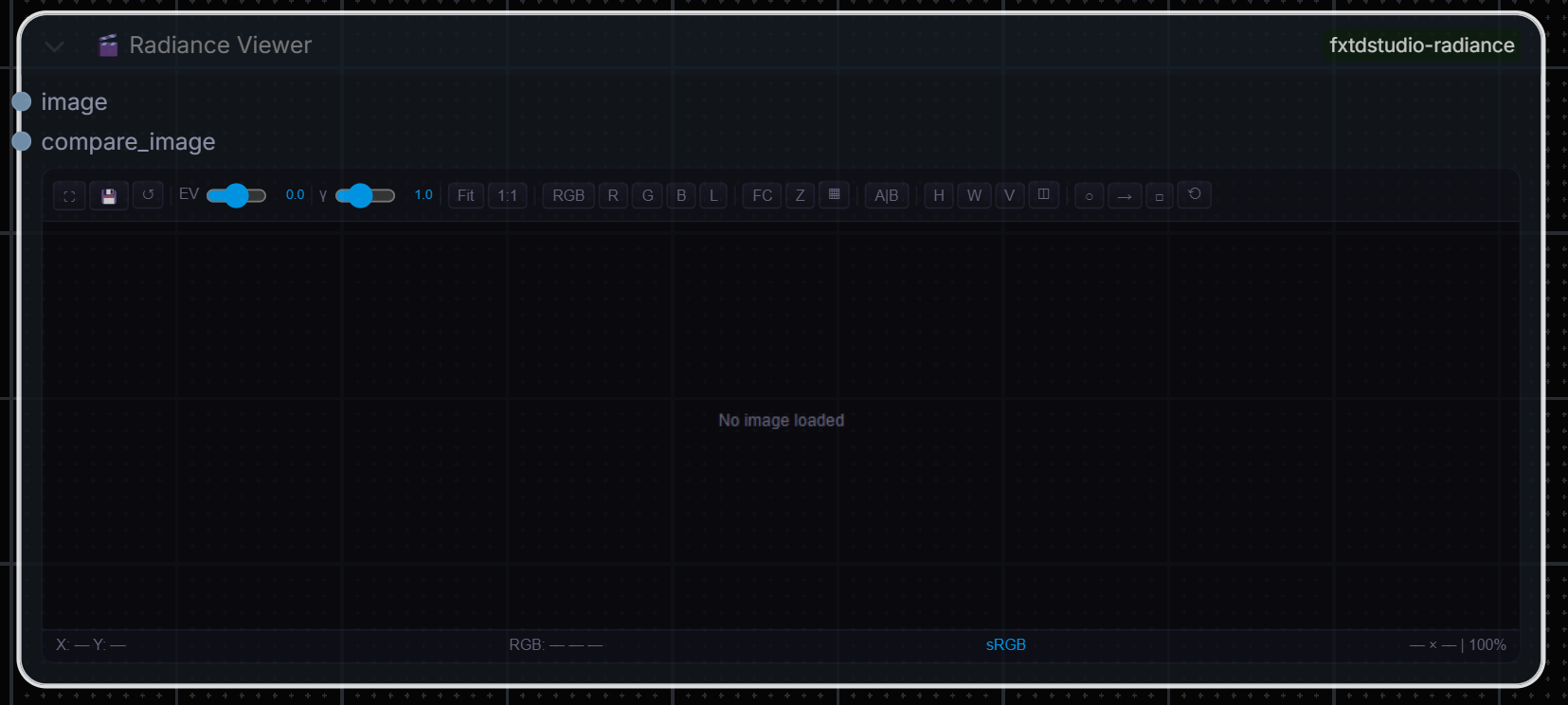
Click image to view in full quality
⌨️ Keyboard Shortcuts
📊 Professional Scopes
Histogram (H)
Shows the distribution of pixel values across the tonal range. Watch for:
- Clipping at edges = lost detail in shadows/highlights
- Gaps in histogram = posterization
- Bunching = low contrast
Waveform (W)
Displays luminance distribution across the horizontal axis of the image. Vertical position indicates brightness level (0-100%).
💡 Pro Tip
If pixels touch the top of the waveform, highlights are clipping. If they touch the bottom, shadows are crushed.
Vectorscope (V)
Shows color hue (angle) and saturation (distance from center). Useful for checking skin tones and color balance.
🎨 False Color Analysis (E)
ARRI-style exposure visualization shows luminance levels as distinct colors:
💡 Usage
Target skin tones in the green/yellow zone. Avoid magenta (clipped) unless intentional for creative effect.
↔️ A/B Comparison
Wipe Mode
Press A to enable split-screen comparison. Drag the divider to compare two images side-by-side.
Difference Mode
Press A again for difference view (5x amplified). Bright areas indicate differences, black indicates identical pixels.
| Mode | Description |
|---|---|
| Wipe | Draggable split-screen comparison |
| Difference | Highlights pixel differences (5x amplified) |
🏆 Industry Comparison
| Feature | Radiance Pro | Flame | Nuke |
|---|---|---|---|
| Zoom/Pan | ✓ | ✓ | ✓ |
| Exposure Control | ✓ | ✓ | ✓ |
| Histogram | ✓ | ✓ | ✓ |
| Waveform | ✓ | ✓ | ✓ |
| Vectorscope | ✓ | ✓ | ✓ |
| False Color | ✓ | ✓ | ✓ |
| Zebra Pattern | ✓ | ✓ | Plugin |
| A/B Compare | ✓ | ✓ | ✓ |
| Color Picker | ✓ | ✓ | ✓ |
🔧 Troubleshooting
Viewer not appearing?
- Restart ComfyUI to load the JavaScript extension
- Check browser console for errors (F12)
- Verify
js/radiance_viewer.jsexists
Scopes not updating?
- Scopes update when the image changes
- Toggle scope off/on to force refresh
Performance issues?
- Reduce preview image size
- Disable vectorscope (most intensive)
- Close other scope panels